
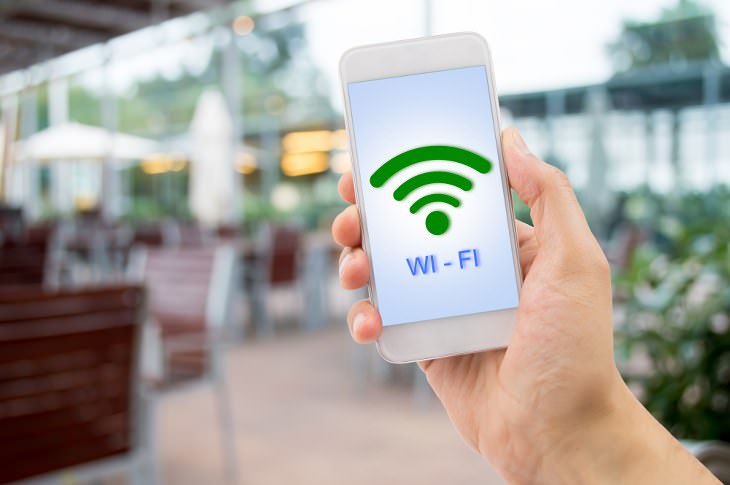
If you've ever dreamt of sharing your smartphone's cellular connection with other Wi-Fi-only devices, such as a tablet or a laptop, then you're in luck! Both Apple and Android phones are able to function as a portable Wi-Fi hotspot, which will allow their web connections to be opened up to anyone nearby who knows the password. This is an extremely useful feature since you won't need to worry about finding a place that offers free Wi-Fi any longer, as your cellphone will always have you covered. A word of warning though, if you're on a data plan you'll be using up a lot more data with this method, which may be a little costly if used for prolonged periods of time, or if anyone decides to download large files or stream videos.
In the guide below, we'll show you how to do this for both Android and Apple smartphones. While the steps might vary a bit depending on your device, the overall procedure remains practically the same.
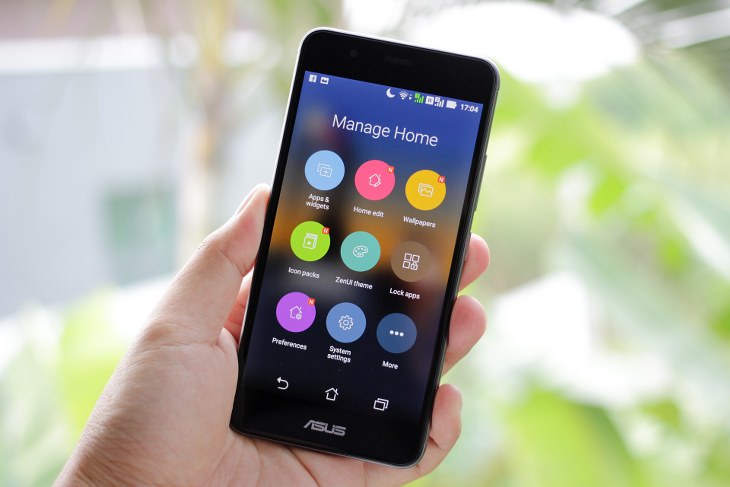
Setting the hotspot up on your smartphone:
1. From your device's home screen, press the menu button, and then go to 'Settings.'
2. From 'Settings,' scroll down until you find a 'Wireless & Networks' button.
3. You should now be able to see an option called 'Portable Wi-Fi Hotspot.' To turn on the hotspot, simply click the check mark next to it. Some phones will even notify you when it has been activated.
4. If you need to check or adjust the hotspot's settings, click on 'Portable Wi-Fi Hotspot Settings.' From here, you'll be able to change the password, router name (SSID), security settings, and even manage any users who might be wirelessly connected to your hotspot.
Connecting to the hotspot from other devices:
1. For each device you want to connect to the hotspot, you'll first have to actually find the Wi-Fi signal. Many devices will find it automatically, but you can also do it manually by going to: Settings > Wireless & Networks > Wi-Fi Settings (Android) or Settings > Wi-Fi > Wi-Fi Hotspot (Apple).
2. Once you've located the Wi-Fi signal, all you have to do is enter the password and everything should be up and running as usual.
Setting the hotspot up on your iPhone:
1. Tap on your 'Settings' app, and then choose 'Mobile Data' or 'Mobile,' depending on your model.
2. Tap on 'Personal Hotspot' and tap the slider on the side so that it turns green.
3. If your Bluetooth or Wi-Fi are turned off, your phone will prompt you to switch them on, which is advice that you should follow. If you don't get this prompt, then simply move on to the next step.
4. Next, tap on 'Wi-Fi Password' and enter a secure password.
5. To check what name your hotspot has been given, simply go to 'Connect Using Wi-Fi.'
Connecting to the hotspot from other devices:
1. For each device you want to connect to the hotspot, you'll first have to actually find the Wi-Fi signal. Many devices will find it automatically, but you can also do it manually by going to: Settings > Wireless & Networks > Wi-Fi Settings (Android) or Settings > Wi-Fi > Wi-Fi Hotspot (Apple).
2. Once you've located the Wi-Fi signal, all you have to do is enter the password and everything should be up and running as usual.

Read Our Comprehensive Guide to Using Google Translate
Of the many Google tricks out there, Google translate is by far one of the most useful. Read this free guide to learn exactly how to make use of it.


The Best Music Streaming Services Out There
In this article, we'll skim through the best music streaming services, for those who'd like to skip Apple and Spotify.
Learn How to Protect Yourself Using a Public Wi-Fi Network
Public Wi-Fi networks are incredibly convenient, but they're not always safe. Here are 10 ways of protecting yourself when using public Wi-Fi.
8:02
31 Nifty Tips to Make Your Phone Work Longer and Faster
Let's learn some handy tips that will make your smartphone last longer.
7:18
23 Smartphone Sale Strategies You Didnโt Know
Why are sellers more interested in selling you a cell phone at the end of the month than in the beginning? Here, sellers reveal some of their hidden sales strategies.
10 of the Best Home Security Apps for Android and IOS
Home security apps are very important when it comes down to home monitoring. Here are the best ones available for Android and IOS.
7 UNDISCOVERED Apps That are NOT on the Google Play Store!
I canโt believe I never knew about these handy Android apps.
Learn Any New Language with These Awesome Apps!
Learn new languages faster with these AI-powered apps.
There's a keyboard Shortcut for Nearly Everything Here!
These shortcuts will cut down the time you waste fiddling about on the computer, and make you into something of an expert.
We Found These Awesome Sites for Reading Short Stories!
These are the best places to read short stories online.
Itโs Almost a Crime Not to Use These Free Nifty Websites
Check out 15 really useful websites. They are completely free to use!
15:16
Get Smarter: How Do Hard Drives Work?
How do hard drives built and how do they work? All is explained in this video.
Boost Your Brain With These 8 Brainy Mobile Games!
Weโve gathered 8 recommended games to keep your brain active, challenge your logical thinking, and help you pass the time enjoyably.
11:12
The Windows Recycle Bin Isnโt Just for TrashโHereโs Why
Did you know about these cool features of the Windows Recycle Bin?
6 Reliable Ways to Save YouTube Videos in 2024
Want to download your favorite YouTube videos for offline viewing? Read this now!
12:58
25 iPhone Tips and Tricks Everyone Should Know
If you've never tried these before, prepare to be amazed by what your phone can actually do. Let's get started!
You Didnโt Realize it, But AI Is Making Your Life Better!
Here are thirteen unique ways AI can simplify daily life.
Exploring the Web Beyond Google: 7 Handy Alternatives
Try some of these non-conventional search engines that you didn't know existed.
7 Tips to Follow When a Computer Hangs or Freezes
Take note of these steps that will help you unfreeze a computer that freezes or hangs regularly.
23:04
ChatGPT: 30 Tips to Using and Working with the AI
In this video, weโre breaking down 30 practical tips to help you use ChatGPT more effectively
2:35
6 Simple Tips for Taking Screenshots on Windows
Taking screenshots on Windows is now super easy. Just note these tips.
5 Awesome Google Chrome Settings You Arenโt Using
Google Chromeโs advanced settings have many useful features that will make your browsing experience so much better.
Don't Charge Your Phone Over 80%, Here's Why
There is truth to the no-overnight-charging rule, and there is also some science to back it up.
All You Need to Know About Your Computer
It's that age of computers, and we should all educate ourselves so we all save ourselves time and anxiety when using a computer, a tablet or a phone. This collection of posts will give you insight into many computer-related issues.
17:41
TikTok: Tips and Tricks for Beginners
Whether you are a total beginner or just looking to streamline your process to get more views, this tutorial covers everything you need to know to go from recording to posting.
11 Free AI Tools That Actually Help You Get Stuff Done
Have you tried any of these useful free AI apps?
5:02
How to Transfer Data From Your Old iPhone to The New One
Got a new iPhone? Here's how you can move all your data from your old iPhone to the new one.
Thirsty For Knowledge? Check Out These YouTube Channels
If you love to learn new things with each passing day, then get ready to discover a gold mine full of educational tools!
Canโt Connect to the Internet? Hereโs What To Do
Not being able to connect to the internet is one of the most pestering things. This is why it might be happening and easy solution to fix it.
17:20
Discover a Feature of Windows That's Super Helpful
Learn how to use some advanced new features of Windows 10 that you probably weren't aware of.
Forget ChromeโZen Browser Is the Upgrade You Need
If youโre tired of slow load times, constant battery drain, or a cluttered interface, Zen might be the browser youโve been waiting for.
Computer Guide: How to Keep Your Computer Up-to-Date!
Follow this simple guide to update drives and resolve common issues on your Windows computer.
43:39
AI News: What's Going On With AI This Week?
This week's AI news covers major releases and impressive demos.
PowerToys: The Best Free Microsoft App for Windows Users
In this article, we'll introduce you to this toolbox and show you which 23 useful tools are waiting for you there.
2:09
Guide: Download Netflix Videos on Any Laptop & PC
Want to watch your favorite Netflix content offline? This easy guide has you covered.
The Most Reliable Cloud Storage Services for 2025
Hereโs a closer look at some of the best cloud storage services to consider in 2025.
These Websites ONLY Share Positivity and Good Stories!
Say goodbye to negativity with these positive news platforms.
These Apps Make Every Photo Look Amazing!
No satisfied with your smartphone photos? Try these super apps today!
Why Fake Info is Best for These 6 Types of Sites
Always avoid giving your real information on these kinds of websites.
Guide: How to Sign a PDF Without Printing it First
This guide will teach you how to sign PDF files digitally without having to print them.
7 Clear Indicators Your Home Router Needs to Be Changed
Is your router in need of an upgrade? Watch out for these signs.
The Most Amazing Websites for Learning Languages for Free
Learn any language for free with these amazing websites!
Replace Your Smartphone if Itโs Showing Any of These Signs
Here are 7 major telltale signs that your smartphone is in need of an upgrade.
Your Computer Mouse Can Do Much More Than You Think...
Knowing how to use your mouse can make computing so much easier than you ever realized. Here are some great tips on how to maximize the use of your mouse, which will increase your overall productivity on the computer.
Is DeepSeek Worth the Hype? A Closer Look at Its Features
DeepSeek is the new AI chatbot in town. But is worth the hype?
9 Useful Blogs Created Specifically For Senior Citizens
Hereโs a wonderful collection of blogs that seniors will find particularly helpful.
What Do Those 12 'F' Keys on Your Keyboard Do?
Find out what those 12 curious F keys on your keyboard mean.
To enable your Ad-Free Subscription, please fill the fields below
Your subscription was successful, now you can enjoy an ad-free experience!! Note: To make sure you get no ads, please make sure to log in to your account. If you are logged in already, then refresh the page. The subscription can be cancelled at any time.